Convert DVD to RMVB video with Leawo DVD Ripper?

Leawo DVD Ripper is a powerful solution for DVD to RMVB video conversion. It has embedded the necessary RMVB codec, so that you don't have to worry when you have never installed one.

The very first step, you should tell the program where to load your DVD video. If you have inserted a DVD disc, Leawo DVD Ripper can automatically recognize it. If you have ripped the DVD content and stored on your hard disk, you can also browse for the folder and import it to the program.


After you finish loading the DVD, the DVD titles and chapters are listed in tree order. You can select any number of them to convert to RMVB video. By default, each individual chapter will turn into a RMVB file. If you want a single large file with all the chapters combined, you can make use of the merge function.

Now it comes to the settings. It is simple and clear. You select the RMVB profile which has already been optimized and you are good to go. Leawo DVD Ripper adapts advanced video technology and that's why so simple steps can come up with a quality output. Advanced settings are also available for more professional demands.

But Leawo DVD Ripper has many powerful features we have not yet unveiled by now.
If you know quite well about the conversion settings, you can access to the advanced setting panel. There lists detailed and comprehensible settings on video and audio codec, which would further affect the output quality and compatibility.


2. Leawo DVD Ripper has video editing features which allow you to adjust the visualization, the duration and the screen size of the output.


3. You can make a snapshot of the video when you play it on the preview window.


4. Batch and merge functions are available for your convenience. You can set the program to send an automatic shutdown command to your computer when all tasks are finished.

5. The codec engine is optimized based on multiple-core CPU and hardware acceleration. It can overrun the ordinary by 2-3 times in video conversion speed.
Leawo DVD Ripper can also convert DVD to many other popular video formats. No matter you are a beginner or a video fan, Leawo DVD Ripper can be of great value to you. For more information, visit Leawo DVD Ripper page on Leawo's website.

How to convert MTS Video to general video

MTS Files: AVCHD video file format, created by newer digital video cameras such as Sony, Panasonic ,cannon, JVC and other HD camcorders. It bases on the MPEG-2 transport stream and supports 720p and 1080i HD video formats, can only be 2 GB in length..
Some people made some videos and want to share their camera video with friends and family members, but they can’t edit the video because they don’t have a practical tool. Here I want to share a MTS Converter. It can convert MTS, TS, M2TS, MOD, TOD, WMV, FLV, AVI, MP4, 3GP, RM and more.

The following is the step-by-step guide about how to use this professional tool.

Step 0: Download and install the MTS Converter , install and run it.


Step 1: Click “Add files” button to import videos.

Step 2: Extend the "Profile" category to select an output format.

Step 3: Click “Open Folder” button to open your output destination file.

Step 4: Click the “Start” to convert.

Tips-----How to edit your MTS video

1. How to change your video effect
If you want to adjust the effect of your movie, please click the “Effect” button and a pop-up effect window will appear. It allows you to edit your movie’s effect including “Brightness, Contrast, Saturation and Volume”.

2: How to crop off the black edges and adjust the size of video play region
By using the "Crop" function you can crop off the black edge of your video and you can also drag the line around the video image to adjust the video play region to fit for your mobile devices

3: How to split your video
The "Trim" function also servers as a video splitter for you to get any time-length video episode. You can set the "Start Time" and "End Time" to set the exact time-length of the clip or you can directly drag the slide bar to the position you want.

4: How to join the videos
If you would like to put several files into one output file, please tick the check box of the “Merge into one file”.

5: How to save your favorite picture
If you like the current image when preview video, you can use the "Snapshot" option. Just click the "Snapshot" button, the image will be saved and you can click the "Open" button next to "Snapshot" button to open your picture.

How to transfer or copy songs from iPhone 3.1 to computer?


1. Transfer or copy songs from iPhone 3.1 to computer

Select one or more video/music files in the file list and click "Export checked files to local" button at the bottom right or in the right-click menu, and select destination fold on your computer, then you can easily transfer music/video from iPhone to your computer.


Copy songs back to iPhone 3.1 from computer

Click "Add Files to List…" or "Add Folder to List…" option at the bottom right, or from "File" in the menu list at the top of the program, you can select to add video/music files or file folder from your computer to iPhone and backup files to iPhone directly. Here I select "Add Folder to List…" option in the dropdown list.


Transfer songs from iPhone 3.1 to iTunes 9

Check the files that you want to transfer to iTunes and then click "Add checked files to iTunes Library" button at the bottom right. The program will automatically open your iTunes after transfer process is done.

Convert MOD files to AVI on Windows with Tanbee MOD to AVI Video Converter

MOD to AVI Converter is dedicated to convert .MOD files to regular video files which are readable by common media players and editing programs. It can export .MOD files to AVI and other popular video format files. As a powerful program, the MOD to AVI Converter also allows you to import .TOD, .MKV, .VOB, .MPG, .MP4, .MOV, and .3GP files to your PC for conversion and edit.

What is AVI ?

AVI stands for Audio Video Interleaved. A computer graphics animation format used in Microsoft Video for Windows. This format interleaves digitized video frames and synchronized audio in one file. The clips generated in the AVI format may be played back in a Windows equipped PC, usually independent of screen resolution and color palette.

Follow the step-by-step guide to convert MOD files to AVI.

Step 1: Download Tanbee MOD to AVI Video Converter, double click the .exe file to install it.

Step 2: Launch the MOD to AVI Converter, click Add button to load MOD clips.


Step 3: Select Common Video-AVI-(.avi) from the output format list.


Step 4: You can edit the clip before conversion.


Step 5: Click Convert to start converting MOD files to AVI.


Note This MOD Converter Supports MOD files from a variety of camcorders like:

JVC MOD camcorders
* 2004: GZ-MC100 (SD), GZ-MC200 (SD)
* 2005: GZ-MG30 (HDD), GZ-MG70 (HDD)
* 2006: GZ-MG37 (HDD), GZ-MG77 (HDD), GZ-MG505 (HDD, SD/SDHC card)
* 2007: GZ-MG130 (HDD), GZ-MG155 (HDD), GZ-MG255 (HDD), GZ-MG555 (HDD, SD/SDHC card)
* 2008: GZ-MS100U (SD/SDHC card)
* 2008: GZ-MG7230 (30 GB HDD, MicroSD)
* 2009: GZ-MG630 (60 GB HDD, MicroSD), GZ-MG670 (80 GB HDD, MicroSD), GZ-MG680 (120 GB HDD, MicroSD)

Panasonic MOD camcorders
* 2003: SV-AV100 (SD card)
* 2005: SDR-S100 (SD card)
* 2006: SDR-S150 (SD/SDHC card)
* 2007: SDR-S10 (SD/SDHC card), SDR-H18 (HDD, SD card), SDR-H200 (HDD, SD/SDHC card)
* 2008: SDR-H20 (HDD, SD/SDHC card), SDR-H60 (HDD, SD/SDHC card)
* 2008: SDR-S7 (SD/SDHC card)
* 2008: SDR-SW20 (SD/SDHC card)
* 2009: SDR-SW21 (SD/SDHC card)
* 2009: SDR-S26 (SD/SDHC card)

Canon MOD Camcorders
* 2008: FS100 (SDHC), FS10 (SDHC), FS11 (SDHC)
* 2009: FS200 (SDHC), FS21 (SDHC), FS22 (SDHC)

Step by step to convert all movies and music (including protected DRM Video)

The guide shows how to crack drm from protected wmv, wma, m4p, m4v, m4a, aac files and convert to unprotected WMV, MP4, MP3, WMA or any video and audio formats you like, such as AVI, MPEG, MOV, 3GP, m4a, aac, wmv, ogg, wav...

Queston 1: I purchased and downloaded some wmv videos from online music store but they are all DRM (Digital Rights Management) protected, which means that I can not enjoy them on my MP3 player and even play them using Windows Media Player on my PC. Could you please tell me there is a way to remove drm from WMV? Any help will be greatly appreciated.
- Answer:Daniusoft Digital Media Converter Pro software is the quickest and easiest solution to remove drm from WMV, M4V, M4P, WMA, M4A, AAC, M4B, AA files by quick recording. It gets audio and video stream at the bottom of operating system, so the output quality is lossless and the conversion speed is fast . The process is as follows.

Queston 2: I have some AVI videos download from Limewire and want to watch them on my iPod Touch, but when I import my videos to itunes it pop an error - ”The file ‘xxx.avi’ cannot be imported because it does not appear to be a valid exported file”, what should I do?
- Answer: iPod Touch accepts only MP4 format video, so you need to convert your downloaded videos to MP4 supported by your iPod Touch, Daniusoft Digital Media Converter Procan meet your need.
Input format:
DRM audio and DRM video (WMA/WMV/M4A/M4B/M4P/M4V/ASF)
Common audio and video formats: MP4, MPG, MPEG, 3GP, RM, RMVB, DAT, MOV, FLV, VOB, MP3, WAV, M4A, WMA
High-definition video: M2TS, TP, TRP, TS, AVI
Output format: Audio: MP3, M4A, AC3, AAC, WMA, WAV, OGG, and APE.
Video: MP4, FLV, AVI, WMV, ASF, 3GP, 3G2, M4V, MPG, VOB.
Make Preparision: Download and install the DRM Removal Software

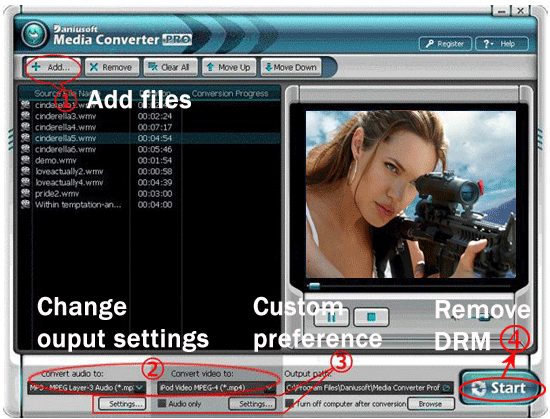
Stpe 1 Run the software and click “Add…” button to load WMA or M4A, M4B, AAC, WMV, M4P, M4V, ASF files


Step 2 Choose output formats. If you want to convert protected audio files, please select “Convert audio to” list; If you want to convert protected video files, please select “Convert video to” list.

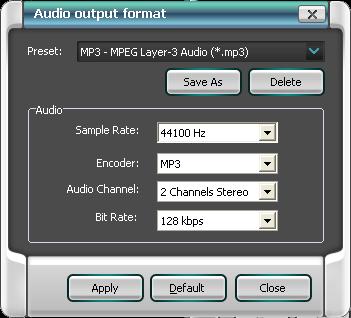
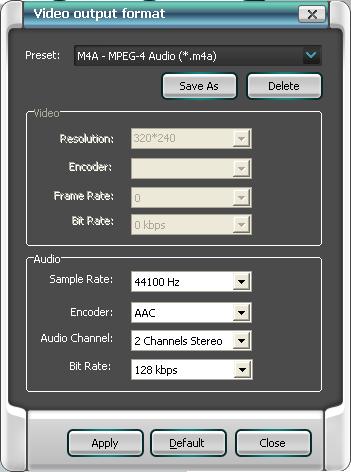
Step 3 You can click “Settings” button to custom preference for output files.
Click “Settings” button bellow “Convert audio to” list for protected audio files


Click “Settings” button bellow “Convert video to” list for protected video files


Step 4 Start remove DRM and convert your DRM protected music and videos by click on “Start” button.

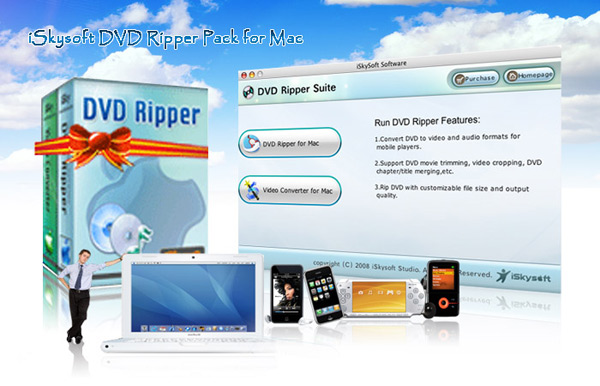
And There is also a Mac version which is iSkysoft DVD Ripper Pack for Mac, it is both a Mac DVD Ripper and a Video Converter software, which can rip your DVD movies and convert your video files on Mac OS for your portable devices.


For windows users, you also need Aiseesoft DVD Ripper to rip your dvd to the video or audio formats you want.
Aiseesoft DVD Copy is a very useful software, which can can not only copy DVD but copy DVD disk to DVD folder or ISO image files for backup and other use. Burn local DVD Folders or ISO image Files to DVD disk is also available.

Ok, just have a try now.

Convert SWF to GIF image

Then how to convert SWF to GIF with Moyea SWF to Video Converter Std?

1. Get the program installed, open it and input your video by “Browse”.

Auxiliary functions:
a. Crop: get rid of the unwanted margins.
b. Capture: snapshot for pictures.
c. Open: open the picture folder.


2. Select Image series, and choose “Animated GIF” in Style. Set your destination folder in “Export To ”. Click “3Convert” to continue.


3. Convert. After “Performance testing”, click “Play and Capture” to play the SWF and the converter will start to capture the frames too. When the SWF plays to the position you want, click “Finish” to start the conversion, and done.

Convert VOB to MPEG with VOB to MPEG Video Converter


VOB format can be perfect on DVD disc, but not necessary on your hard disk. When your PC softwares and portable terminals refuse to accept VOB videos, they are actually asking you to firstly convert VOB to MPEG format or other kinds. Leawo VOB to MPEG Video Converter is exactly a well-designed VOB to MPEG converter which can help you go though the VOB to MPEG conversion easy and fast. Moreover, it also provides value-added features such as video editing.

Leawo VOB to MPEG Video Converter is an elegant program with user-oriented interface and good compatibility with the system. Feel free to download the trial version for free evaluation.

At the startup, Leawo VOB to MPEG Video Converter will greet you with a quick manual on how to use it in several steps. Most of the functions are clearly seen on the home interface. Anyone who is new to this program can easily get hang of it very soon.


Secondly, Leawo VOB to MPEG Video Converter allows you to directly drag in the video files without efforts to bring them in via traditional "Add" button. Next you can rearrange and rename the files on the list. If there are files with the same name, Leawo VOB to MPEG Video Converter will automatically number them to prevent unexpected results. Meanwhile, you can double click on the file title for a video preview.


Thirdly, Leawo VOB to MPEG Video Converter has a sufficient supply of profiles to make the video conversion much simpler. Select MPEG-1 or MPEG-2 profile for your situation.


These optimized profiles have undergone thorough tests so as to make the most satisfactory results in both output quality and compatibility.

The output quality is controlled by the options of Profile Quality and Audio Quality. They are graded in three levels: High, Medium and Low. As the output quality changes, so do the file size and conversion time.


Here you can download this Leawo Video Converter freely here.

Top 8 best HD Video Converter reviews

Now, with the popularity of HD video, there are many HD Video Converters on the market, in order to help our users choose the right HD Video Converter, we has been tested and compared nearly a hundred HD Video Converters on the market, and finally we confirmed eight best products for your reference.

Here is the comparison chart, if you want to know more, please visit: HD Video Converter


1. Wondershare HD Video Converter
* Highly support converting HD (High Definition) videos including MOD, TOD, M2TS, MTS, M2T, TS, TP, TRP,MKV etc.
* Perfectly convert SD (Standard-Definition) video to HD video and convert HD videos to SD videos.
* Directly convert among all popular videos including avi, mkv, mp4, wmv, flv, mpeg, rm, rmvb etc.

2. Tipard HD Video Converter
* Convert among HD videos, like HD TS, HD MTS, HD WMV, HD MPG, HD MPEG4, H.264/AVC , HD AVI, HD ASF, etc.
* Convert HD video to general video
* convert general video to HD video

3. Aimersoft HD Video Converter
Aimersoft HD Video Converter is the high definition video converter software of all HD Converters for you to convert HD video files with high quality. With this HD video converter you can also easily convert among HD video formats, convert video to HD, convert HD videos to SD (Standard-Definition) videos. The HD video converter supports most of HD video formats such as AVCHD (mts, m2ts), H.264/AVC, MKV, MPEG-2 (ts), HD WMV, MPEG-4 and Quick Time.

4. Aiseesoft HD Video Converter
Convert HD TS, HD MTS, HD M2TS, HD MPEG, HD WMV, HD MPG, HD MP4, QuickTime HD MOV, HD H.264, HD RM video, etc.

5. Xilisoft HD Video Converter
* Supports HD videos such as AVCHD (mts, m2ts), TS, H.264/AVC, MKV
* Create videos and SWF/FLV file from pictures
* Convert popular formats like AVI, MPEG, WMV, MP4, DivX, RM, MOV, and FLV
* Convert HD to SD videos and audios

6. ImTOO HD Video Converter
ImTOO HD Video Converter is a professional HD converter and HD encoder designed to convert among high definition videos like HD AVI, MKV, HD H.264/AVC, AVCHD (.mts, .m2ts), HD Quick Time, HD MPEG-4 (TS), HD ASF video. On top of this, it can also convert among audios and convert video to MP3, WMA, WAV, M4A, AAC, AC3 audio and picture, as well as make videos from pictures in JPG, GIF, PNG, and BMP.

7. Nidesoft HD Video Converter
A professional HD Converter tool - Nidesoft HD Video Converter, with its powerful decode technology, could support decoding and encoding of all format High-Definition movie files. You could convert HD videos to other popular formats and download to your iPod, iPhone, BlackBerry, MP4 player, etc..

8. OJOsoft HD Video Converter
OJOsoft HD Video Converter is the best HD video format converter which can deal with HD video files with easy procedure and lossless quality. Specifically, it can convert among HD video files, convert video to HD, convert HD videos to SD (Standard-Definition) videos. The HD video converter supports most of HD video formats such as AVI-HD, H.264/AVC, MKV-HD, AVC-HD, MPEG4 TS-HD, MPEG2 TS-HD, WMV-HD, Quick Time-HD, ASF-HD.

How To make special symbols with keyboard

This is special symbols not available in keyboard, you must use Alt with other number for make it.

Alt + 0153..... ™... trademark symbol

Alt + 0169.... ©.... copyright symbol

Alt + 0174..... ®... .registered trademark symbol

Alt + 0176 ...°....... .degree symbol

Alt + 0177 ...± ... .plus-or-minus sign

Alt + 0182 ...¶....... paragraph mark

Alt + 0190 ...¾...... fraction, three-fourths

Alt + 0215 .... ×..... multiplication sign

Alt + 0162... ¢...... the cent sign

Alt + 0161..... ¡...... upside down exclamation point

Alt + 0191..... ¿..... upside down question mark

Alt + 1.......... ☺... smiley fsce

Alt + 2 ......... ☻... black smiley face

Alt + 15........ ☼... sun

Alt + 12........ ♀.... female sign

Alt + 11....... ♂.... male sign

Alt + 6......... ♠..... spade sign

Alt + 5.......... ♣.... Club symbol

Alt + 3.......... ♥.... Heart

Alt + 4.......... ♦..... Diamond

Alt + 13........ ♪..... eighth note

Alt + 14........ ♫.... beamed eighth note

Alt + 8721.... ∑ .... N-ary summation (auto sum)

Alt + 251...... √ ..... square root check mark

Alt + 8236..... ∞ .... infinity

Alt + 24........ ↑..... up arrow

Alt + 25........ ↓..... down arrow

Alt + 26........ →... right pointing arrow

Alt + 27........ ←... left arrow

Alt + 18........ ↕..... up/down arrow

Alt + 29........ ↔... left right arrow

Have Fun !!! :)

Collection by CtrlZBoy

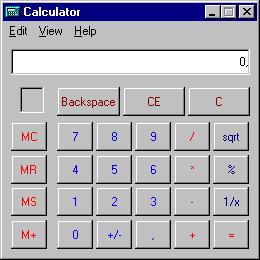
Run Internet Site From Windows Calculator


How to access the Internet via your standard Mcft Calculator
When your browser(s) is/are messed up for some unexplainable reason

1. Open your MS Calculator. This is normally found in Start => All Programs => Accessories => Calculator.
2. Open the help-window by pressing the F1 key.
3. Click the top-left corner icon of the help window once (Standard is a Document with a Questionmark).
4. Select Go to URL-address.
5. Type your address into the avaliable field, but remember to type http://, and not just www. (or equivalent).
6. Have fun!

Collection