Showing posts with label iphone. Show all posts

Copy iPhone SMS to TXT file with Tansee iPhone Transfer SMS

With Tansee iPhone Transfer SMS, you can backup iPhone SMS to PC as a txt file and keep them safe.

Guide of how to copy iPhone SMS to TXT file with iPhone SMS Backup software:

Step 1: Free Download Tansee iPhone Transfer SMS free trial version then install the software (skip if done yet). And please install iTunes version above 7.7, if your iTunes can read your iPhone, our software will.

Step 2: Connect iPhone to your computer.

Step 3: Launch Tansee iPhone Transfer SMS, the SMS contacts info will display as shown in your iPhone screen automatically as fig 1. Click on single contact, all SMS records from him/she will display as fig 2 shown.


Fig 1


Fig 2

Step 4-a: In fig 1 situation, you can click button "Copy" to copy sms from all iPhone contact, then select options:
1: Choose File Type: back up to TXT file or ANTS file;
2: Choose File Path: where to store the backup file, do nothing if you choose default path;
3: Advanced Option: if you choose ANTS format in step 1, you can add a password to protect the file.
Click OK Button to finish the Copy. See fig 3.
Note: You can only copy the first 20 items for each contact in trail version.


Fig 3

Step 4-b: In fig 2 situation, click button "Copy" to copy sms from a single contact, select options:
1: Choose File Type: You can select TXT file format in single contact sms transfer;
2: Choose File Type: You can select .MHT file format in single contact sms transfer; This format support Print Out.
Please open the .mht file by IE, click "tools" - "internet options" - "advanced" - check "print background colors and images", then click "Print".
3: Choose File Path: where to store the backup file, do nothing if you choose default path;
Click OK Button to finish the Copy. See fig 4.
Note: You can only copy the first 20 items for him/she in trail version.


Fig 4


Free download it and try!

Transfer and copy Call list from iPhone to computer with iPhone Tool Kits?

Do you want to copy Call list from iPhone to computer for printting? iPhone Tool Kits is an easy to use utility designed to help you back up all your files on your iPhone, so that you can recover any lost or missing songs, videos, books, photos and so on. It can easily backup and transfer iPhone songs, videos, photos, SMS, call list, contacts and books(you purchased via iBook Store) to computer. And even enable your iPhone as a removable hard disk. It supports iPad, iPod touch as well. You can Free download it now.

How to transfer and copy Call list from iPhone to computer with iPhone Tool Kits?

Step 1: Connect your iPhone to your PC. Normally, iTunes will be auto-run first. In iTunes, make sure that "Enable disk use" has been checked in the iphone Options.


Step 2: Run our program. It will auto-scan the iPad on your PC. If the iPad is enabled, the files (iBooks) will be shown in the list.


Button Function description
1 To copy call list to your pc.
2 Status currently.
3 Quickly find items.


Step 3: From this list, you can now select and checkmark the files you want to back up. Click the "Export" button.

Step 4: Done! The files are now backed up to your computer.


Options setting

Transfer songs videos playlists from iPod to iPhone easily

Step 1: Free download this iPod to iPhone transfer and run it.

Step 2: Launch this iPod to iPhone transfer. The interface is as follows:

Transfer songs videos playlists from iPod to iPhone

Step 3: Connect two iPods to your computer. Then your iPods' information will be displayed:

Transfer songs videos playlists from iPod to iPhone

Note: The two windows will display the same iPod's info. Just click the other tab:

Transfer songs videos playlists from iPod to iPhone

Transfer songs videos playlists from iPod to iPhone

Step 4: Creat a playlist on one iPod (you want to transfer songs to):

Click playlist button:

Transfer songs videos playlists from iPod to iPhone

Then double-click Add New Playlist:

Transfer songs videos playlists from iPod to iPhone

Transfer songs videos playlists from iPod to iPhone

The added playlist will be displayed:

Transfer songs videos playlists from iPod to iPhone

Step 5: Highlight the file(s) you'd like to transfer to the new playlist::

Transfer songs videos playlists from iPod to iPhone

Step 6: Click <- arrow to transfer selected files to the new created playlist:

Transfer songs videos playlists from iPod to iPhone

Then the file counts will change to 1:

Transfer songs videos playlists from iPod to iPhone

Done! Now you have successfully transfered songs/videos/palylists from iPod to iPhone. Enjoy the music from other iPod on your iPhone right now!

How to transfer or copy songs from iPhone 3.1 to computer?


1. Transfer or copy songs from iPhone 3.1 to computer

Select one or more video/music files in the file list and click "Export checked files to local" button at the bottom right or in the right-click menu, and select destination fold on your computer, then you can easily transfer music/video from iPhone to your computer.


Copy songs back to iPhone 3.1 from computer

Click "Add Files to List…" or "Add Folder to List…" option at the bottom right, or from "File" in the menu list at the top of the program, you can select to add video/music files or file folder from your computer to iPhone and backup files to iPhone directly. Here I select "Add Folder to List…" option in the dropdown list.


Transfer songs from iPhone 3.1 to iTunes 9

Check the files that you want to transfer to iTunes and then click "Add checked files to iTunes Library" button at the bottom right. The program will automatically open your iTunes after transfer process is done.

Convert SWF to MP4 for iPhone

What is SWF?

The SWF file format (pronounced "swiff") delivers vector graphics, text, video, and sound over the Internet to AdobeFlashPlayer software. The SWF file format is designed to be an efficient delivery format, not a format for exchanging graphics between graphics editors. It is designed to meet the goals of On-screen display, Extensibility, Network delivery, Simplicity, Scriptability, Speed, Scalability.

What is iPhone?

iPhone is extremely thin (only 11.6 millimeters thick) but wider and longer than many comparable devices. The display area is a 3.5-inch wide screen multi-touch interface with unusually high resolution (160 pixels per inch). Unlike most other smartphones, iPhone does not use a hardware keyboard or a stylus. To navigate, a user uses multiple taps and drags to navigate through a mobile version of Apple's OS X operating system. Like iPod, iPhone synchronizes data with a user's personal computer, using iTunes as client software and Apple's proprietary USB port. iPhone is compatible with Microsoft's Windows operating systems, including Vista.

iPhone's networking features include:

* Automatic detection of WiFi networks.
* Support for the 802.11b and 8.2.11g standards.
* The use of quadband GSM and SIM Cards to access cellular networks.
* EDGE support for high-speed data transfer where available.
* Bluetooth connectivity for short range networking with peripherals, other iPhones and PCs.

For the reason of features of SWF file and iPhone Player, and if you want to view SWF file with your iPhone player, you have to use some SWF Converter to convert SWF to MP4 which is compatible with iPhone. Therefore, Moyea SWF to Video Converter is the best choice.

Besides Moyea SWF to Video Converter Pro and Standard version, Moyea SWF to iPhone Converteris also an economical and powerful tool for converting SWF to video for home use as well as sharing with excellent picture quality and sound quality.

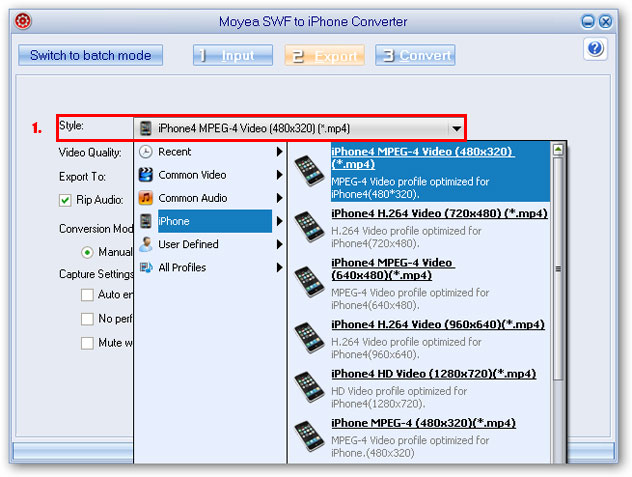
1. This SWF to iPhone Converter can convert swf to mp4, swf to iphone video(mp4), swf to iPod video(mp4 for home and amateur users, for this iPhone Converter cost less and has perfect performancesfor conversion.Besides, this flash (SWF) to iPhone Converter offersthe mostsuitable profile for the output, as well as reset some parameters for the output.


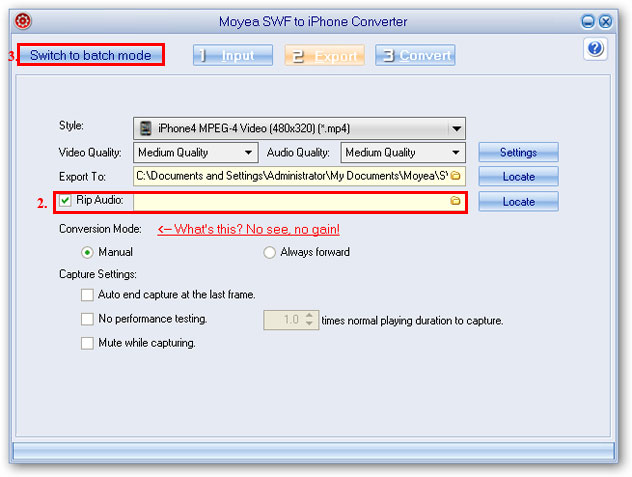
2. Moyea SWF to iPhone Converter can rip SWF to MP3, AAC, M4A, WAV, WMA audio files for your other entertainment use. You only need to make sure that "Rip Audio" is checked, and then specify a folder to locate the audio file. After conversion, you will find the audio file the located folder.

3. Support batch mode conversion. If you are in the single mode, you only need to click "Switch to batch mode" to turn to batch mode. With batch mode, you can convert multiple file at a time without manual interference.


Moyea SWF to iPhone Converter also allows interaction with Flash content during the conversion and there are no frame skips in the generated videos. Besides, its Play-and-capture technology allows users to decide the beginning frame and end frame to capture for conversion to meet their needs.

How to Import DVD Movies/Videos/Songs/Images to iPhone

Step 1: Connect iPhone

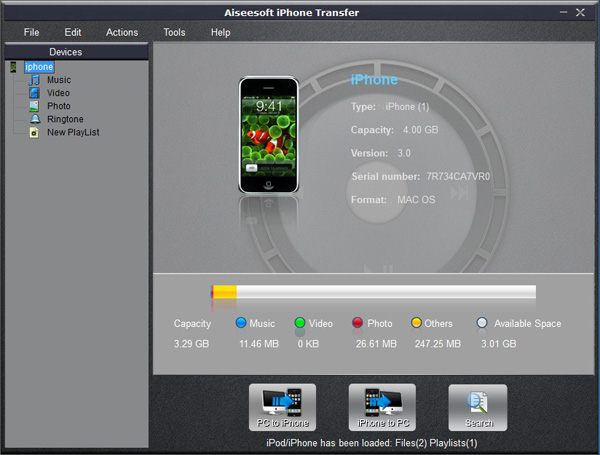
Plug your iPhone to your computer via USB cable, it can automatically find your iPhone, load your iPhone info and show the info at the left of its interface. (It works the same as itunes.)


Step 2: Import to iPhone

A. Import DVD movies to iPhone (iTunes does not allow you to do this)


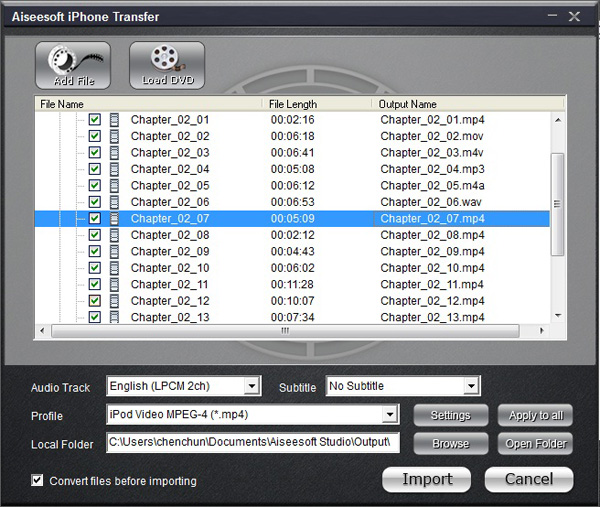
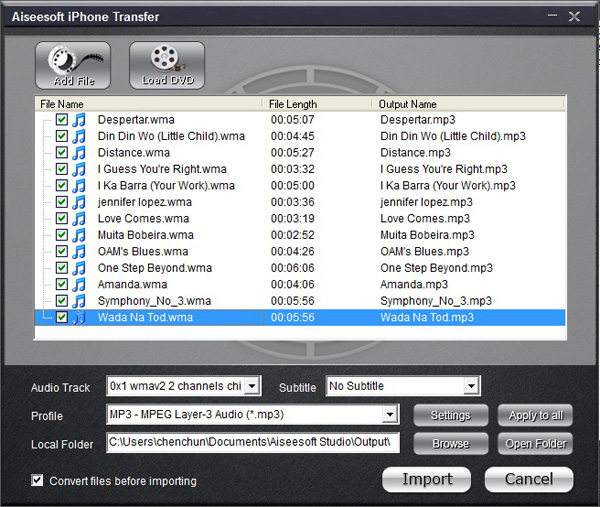
1.Select “Movie” in the left list and then click “PC to iPhone” button at the bottom of the interface, you will see a conversion and import window.
2.Put your DVD movies in your DVD Drive and Click “Load DVD” button to load the movies.
3.You can choose “Audio track” and “Subtitles” of the output movies, if you do not want a subtitle just leave it blank. You need also select the output profile and you can select apply to all button to use this output profile forever, if you do not use it some day, you can change it at will.
4.Click “Import” button and it will help you to convert the movies to iPhone video format and then import into your iPhone directly.

Note:
You need to check the box before “convert files before importing”, if not the movies/videos/songs can not be recognized by iPhone and can not be played in iPhone.

B. Import videos/songs to iPhone (iTunes only import certain format videos/songs to iPhone)


1. Select “Video” or “Music” in the left list and then click “PC to iPhone” button and go to the conversion and import window
2. Click “Add File” button to add the video or music to it and you can choose output profile and then click “import” button
Note:
If the videos and songs' format is not supported by iPhone, this powerful iPhone transfer will convert them first and then transfer them into your iPhone. If you have lots of videos or songs it may take longer to transfer them to your iPhone.

C. Import photo/images to iPhone
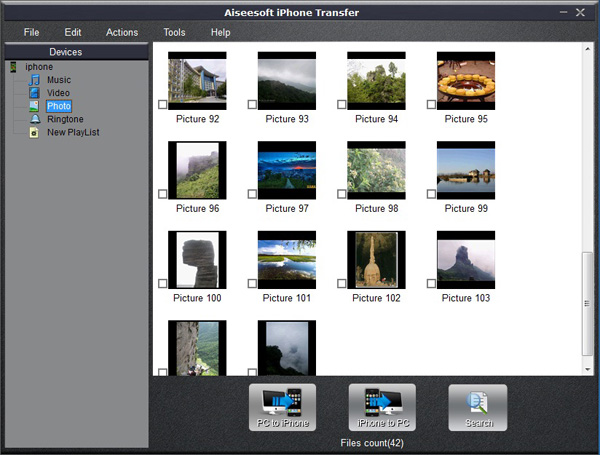
The process of importing images to iPhone is the same as videos/songs. First you need to select photo in the left list. Second you can select photos to import to your iPhone.


Note:
If you import a photo you do not want to you iPhone, you can right click the selected photo and then delete it from iPhone directly.

D. Import and Create Ringotnes to iPhone (iTunes can only import but not create)


1.Select Ringtone on the left list
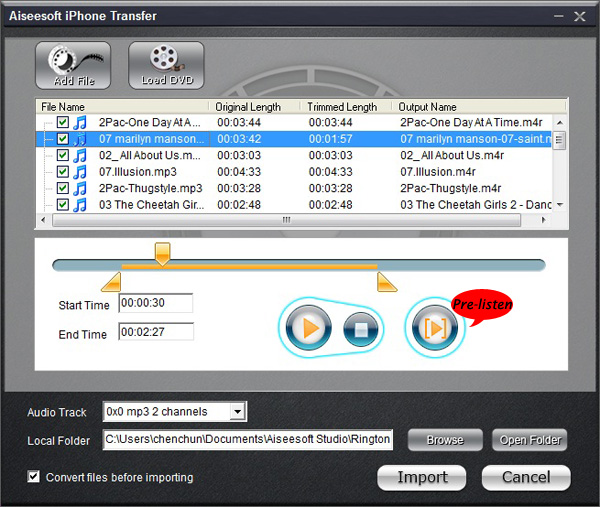
2.Click “PC to iPhone” button and you will go to the make ringtone and import window.
3.Here this powerful iPhone transfer allows you to create ringtones for iPhone from DVD/Movie/Video/Music.
4.After you load a video, music or a DVD, you can pick up one part of it as your ringtone. You can pre-listen the ringtone. If not satisfied, change it and re-prelisten it.
5.After you find your right part as your ringtone, click “import” button. It will generate your ringtone and then import to your iPhone directly.